
World Map is a Joomla module that displays an interactive SVG world map from https://www.cssscript.com/animated-accessible-modal-pure-javascript-micromodal/ and author micromodal.
Select countries from the module settings and optionally add tooltip text for each selected country.
The module is intended for use cases such as showing service areas, office locations, partner countries, delivery coverage, project presence, or any other country-based information.
The map does not load demo or sample data. It is displayed only when at least one country has been added in the module settings.
Main Features
- Interactive SVG world map.
- Country selection from the Joomla module settings.
- Optional custom tooltip text per country.
- Optional Link URL (Works only if Tooltip trigger set to Hover and Double-click zoom set to disable).
- Translatable country names through Joomla language files.
- Custom map background color.
- Custom active country color.
- Custom no-data country color.
- Custom tooltip background and text colors.
- Optional flags in tooltips.
- Hover or click tooltip behavior.
- Zoom, pan, continent selector, and interaction controls.
- Separate desktop and mobile map height settings.
Basic Settings
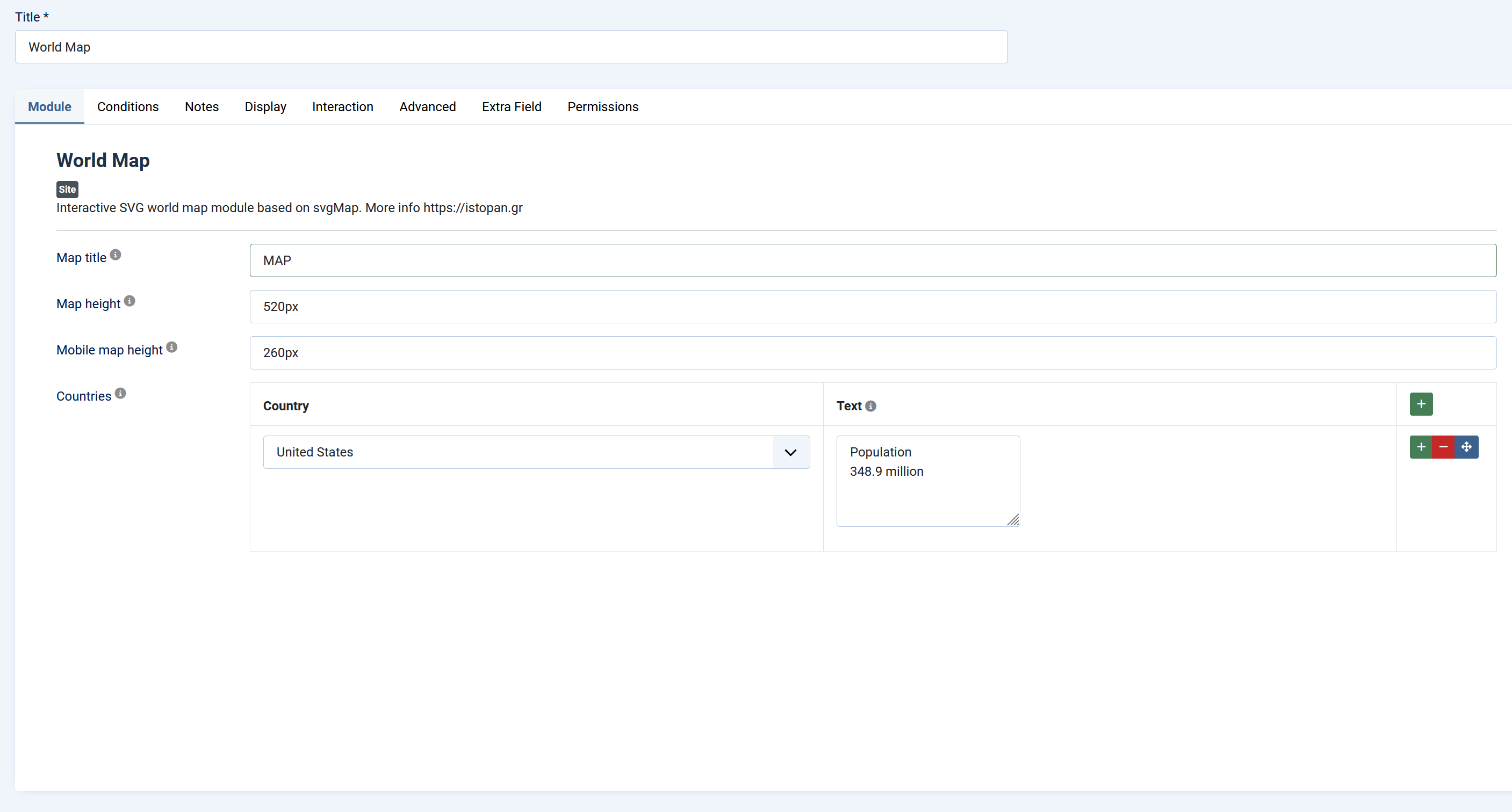
Optional title displayed above the map.
Leave empty if you do not want a visible title.
Controls the normal/desktop height of the map container.
Accepted values are CSS size values such as:
Optional height used on mobile screens up to approximately `767px` wide.
Accepted values are CSS size values such as:
This is useful when the desktop map height is too large for mobile screens.
List of countries that should be active on the map.
- Country: Selects the country that should be active on the map.
- Text: Optional tooltip text for that country.
- Link URL: Optianl Link URL (Works only if Tooltip trigger set to Hover).
If no countries are added, the module outputs no map.
Display Settings
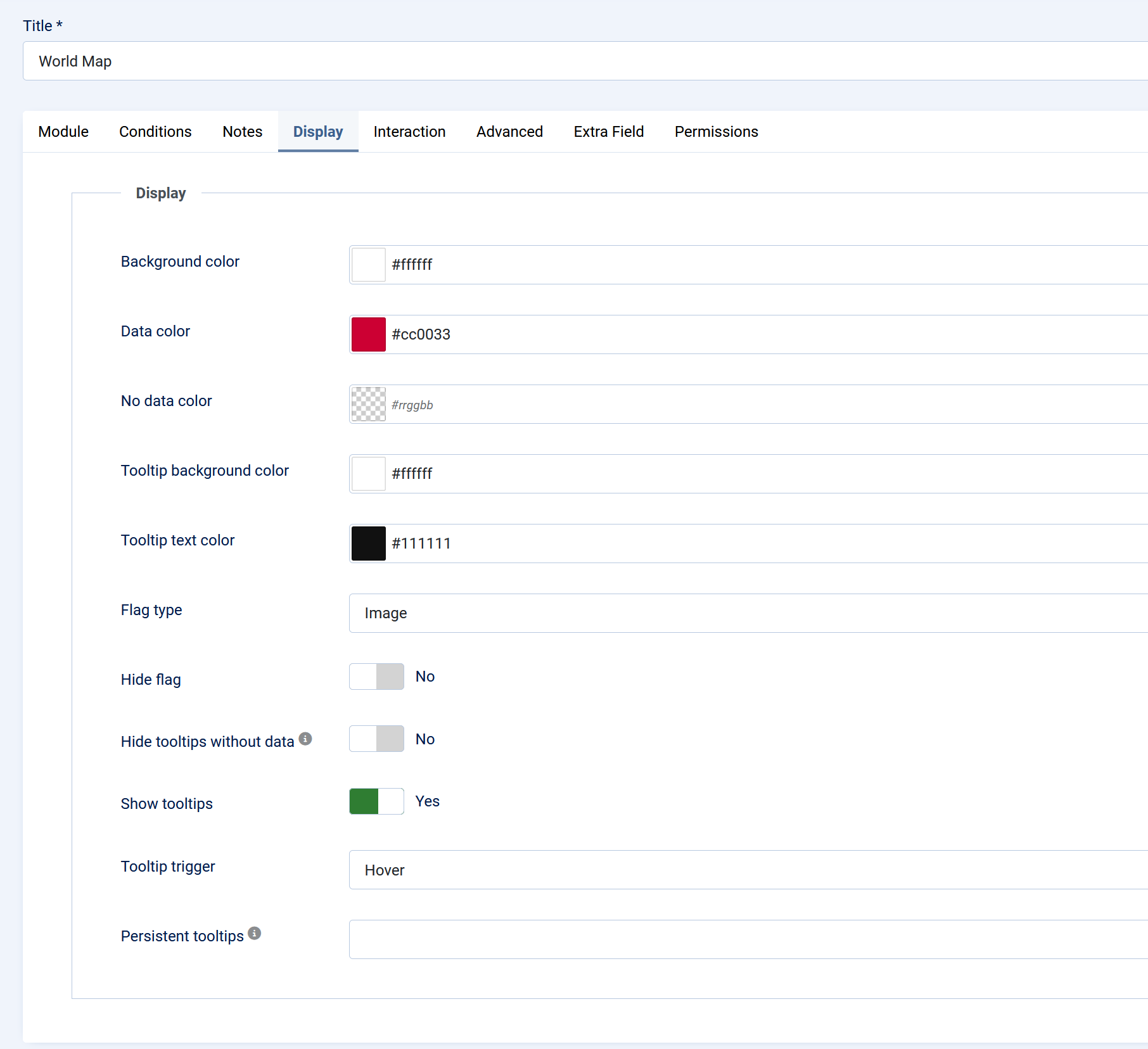
Sets the background color of the map area.
Sets the color used for countries that have been selected in the **Countries** list.
All selected countries use this same color.
Sets the color used for countries that have not been selected in the **Countries** list.
If left empty or invalid, the module uses a safe fallback color internally.
Sets the background color of the tooltip box.
Sets the text color inside the tooltip.
Controls how country flags appear inside tooltips.
- Image: Displays SVG flag images. This uses an external flag image source.
- Emoji: Displays emoji flags where supported by the browser/device.
When enabled, the tooltip does not display a country flag.
Use this if you want a cleaner text-only tooltip or if you do not want external flag images.
Enables or disables tooltips globally.
If disabled, country hover/click tooltips are not shown.
Controls how tooltips are opened.
- Hover: Tooltip appears when the pointer is over a country.
- Click: Tooltip appears after clicking/tapping a country.
Leave this field empty if you only want normal hover/click tooltips.
Interaction Settings
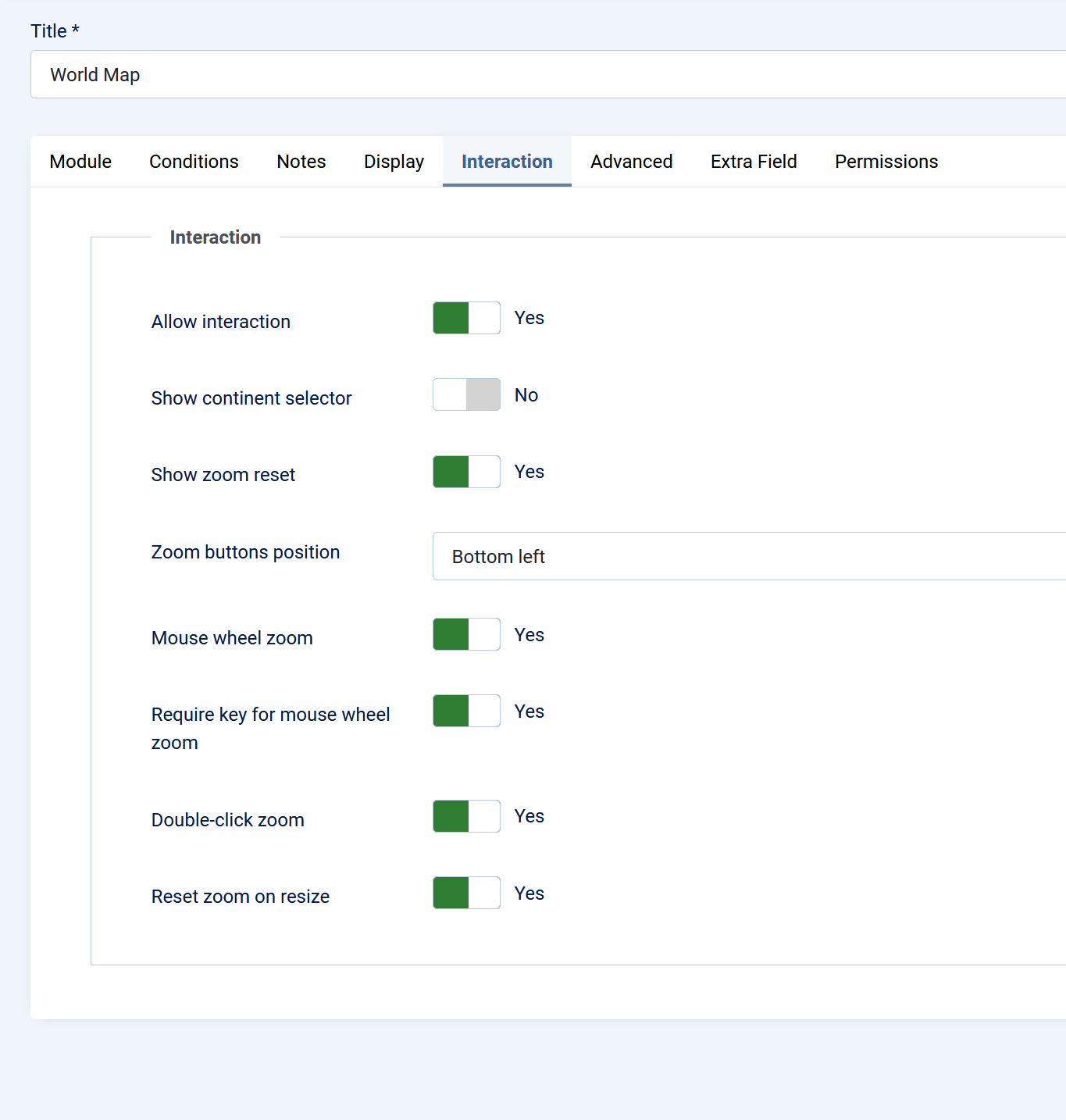
Enables or disables map interaction.
When enabled, users can interact with the map according to the zoom and pan settings.
Shows or hides the continent selector control.
This lets users quickly focus on a continent.
Shows or hides the zoom reset button.
When enabled, users can return the map to its initial zoom and pan position.
Controls where the zoom buttons appear.
Available options: Top left, Top right, Bottom left, Bottom right
Enables or disables zooming with the mouse wheel.
Require key for mouse wheel zoom
When enabled, the user must hold the required modifier key while using the mouse wheel to zoom.
This helps prevent accidental page scroll hijacking.
Enables or disables zooming by double-clicking the map.
When enabled, the map resets its zoom/pan state when the browser or container size changes.
Advanced Settings
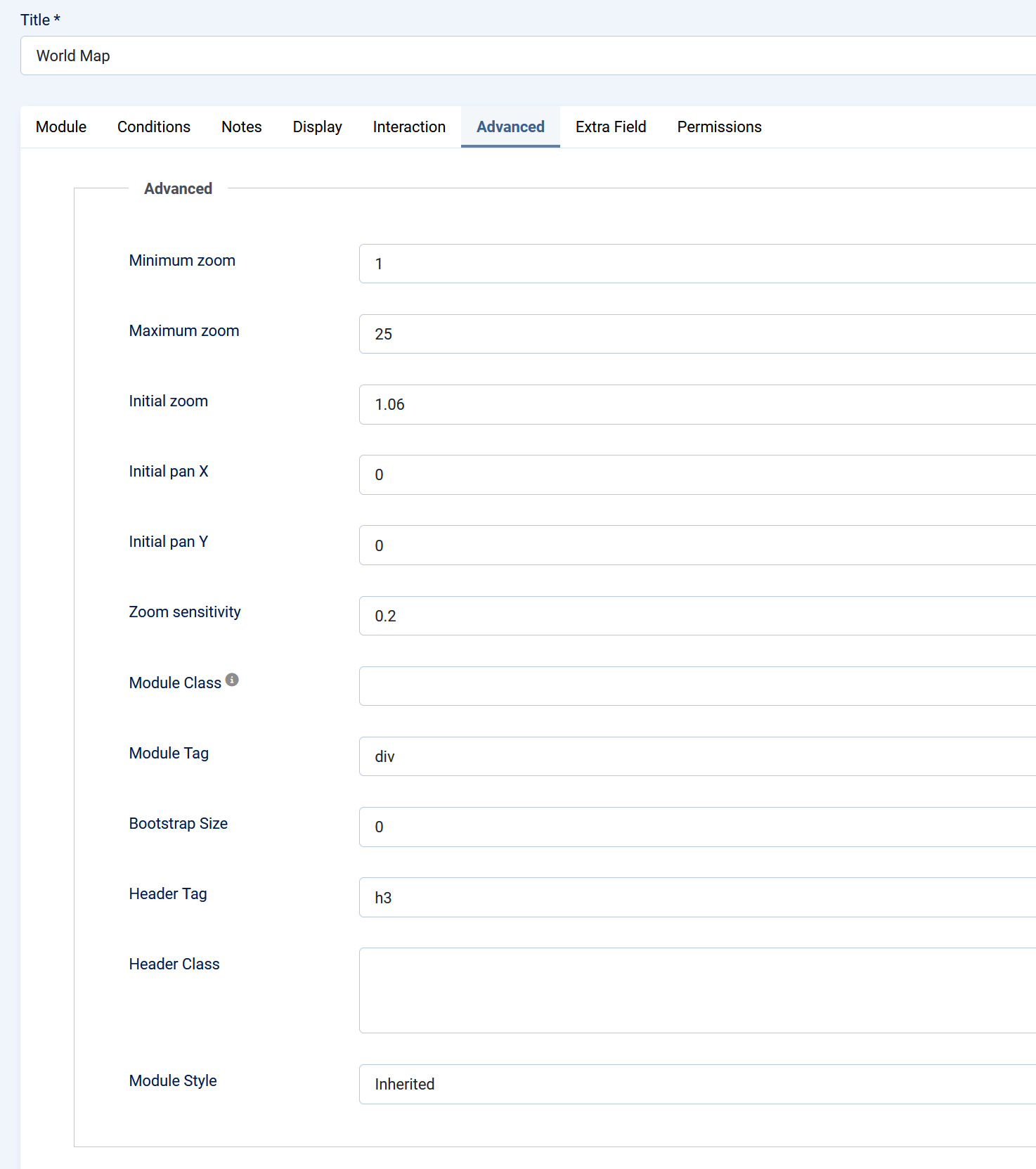
Initial zoom level when the map loads.
A value close to `1` shows the full world map.
Initial horizontal map offset.
Use this only when you also use a higher initial zoom and want to focus on a specific region.
Use this only when you also use a higher initial zoom and want to focus on a specific region.
Controls how sensitive zooming feels.
Lower values make zooming slower. Higher values make zooming faster.
Standard Joomla module class suffix.
Use this if you want to apply custom template styling to this specific module instance.
Notes
- The module does not display a map until at least one country is selected.
- Selected countries are treated as active even when their tooltip text is empty.
- Countries that are not selected remain visible as part of the world map.
- The module uses plain text for custom tooltip content, not raw HTML.
- If Flag type is set to Image, flag images are loaded from an external flag image source.
- If you want to avoid external flag images, use Emoji or enable Hide flag.
Installation
1. Go to Joomla Administrator → System → Install → Extensions.
2. Upload and install `mod_world_map_final.zip`.
3. Go to Content → Site Modules.
4. Open or create the World Map module.
5. Select a template position.
6. Assign the module to the desired menu items.
7. Add at least one country under Basic → Countries.
8. Publish the module.