
Joomla 6’s Articles – Related module (mod_related_items) uses shared Meta Keywords to find articles related to the one currently being viewed. This tutorial adds an alternative layout that displays a thumbnail below each article title. You can activate it on any instance of the module without modifying Joomla core files.
1. Create the layout file in your template
Create a file named relatedimages.php and paste in the complete PHP code below. You can also download relatedimages.php and place it in the following location, relative to your Joomla site root.
templates/YOUR_TEMPLATE/html/mod_related_items/relatedimages.php
Replace YOUR_TEMPLATE with the folder name of the template used on the article page. Create the mod_related_items folder if needed.
<?php

/**
 * @package     Joomla.Site
 * @subpackage  mod_related_items
 * @copyright   (C) 2006 Open Source Matters, Inc. <https://www.joomla.org>
 * @license     GNU General Public License version 2 or later; see LICENSE.txt
 */

defined('_JEXEC') or die;

use Joomla\CMS\Factory;
use Joomla\CMS\HTML\HTMLHelper;
use Joomla\CMS\Language\Text;
use Joomla\CMS\Layout\LayoutHelper;

if (!$list) {
    return;
}

Factory::getApplication()->getDocument()->getWebAssetManager()->addInlineStyle(
    '.mod-relateditems-images > li:not(:last-child) { border-bottom: 1px solid #808080; padding-bottom: .5rem; }',
    ['name' => 'mod-related-items.relatedimages']
);
?>
<ul class="mod-relateditems relateditems mod-list list-unstyled mod-relateditems-images">
    <?php foreach ($list as $item) : ?>
        <?php
        $images = json_decode($item->images ?? '', true);
        $imageType = !empty($images['image_intro']) ? 'image_intro' : 'image_fulltext';
        $image = $images[$imageType] ?? '';
        $alt = empty($images[$imageType . '_alt_empty']) ? ($images[$imageType . '_alt'] ?? '') : '';
        ?>
        <li class="mb-2">
            <a class="d-flex flex-column align-items-start gap-2" href="/<?php echo $item->route; ?>">
                <span>
                    <?php if ($showDate) : ?>
                        <?php echo HTMLHelper::_('date', $item->created, Text::_('DATE_FORMAT_LC4')) . ' - '; ?>
                    <?php endif; ?>
                    <?php echo htmlspecialchars($item->title, ENT_QUOTES, 'UTF-8'); ?>
                </span>
                <?php if ($image !== '') : ?>
                    <?php echo LayoutHelper::render('joomla.html.image', [
                        'src'     => $image,
                        'alt'     => $alt,
                        'class'   => 'rounded',
                        'loading' => 'lazy',
                    ]); ?>
                <?php endif; ?>
            </a>
        </li>
    <?php endforeach; ?>
</ul>
2. Activate the layout
- In the Joomla administrator, go to System → Manage → Site Modules.
- Open your Articles – Related module.
- In the Advanced tab, set Layout to relatedimages under your template.
- Save the module and open an article page where it is assigned.
3. Set the article images
Open a related article and select an Intro Image in its Images and Links tab. The layout uses the Full Article Image as a fallback. If both fields are empty, the article appears with its title alone, or with its date as well if the module’s Date option is enabled.
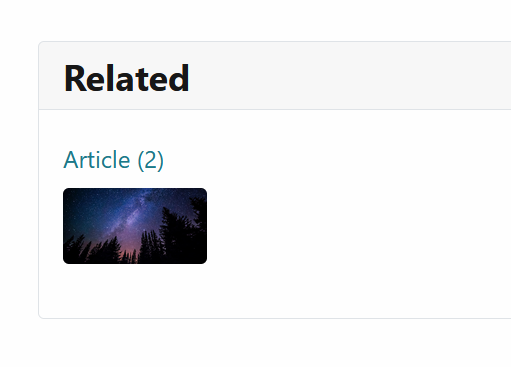
The image appears below the title and follows your template’s image styles. Both open the article when clicked. A 1 px neutral gray line (#808080) separates adjacent results on light and dark backgrounds. The last result has no line underneath.
4. Test the result
Open a published article that shares at least one Meta Keyword with another published article. If the module is empty, check the keywords and confirm that the module is published and assigned to the article page. If relatedimages is missing from the layout dropdown, check the template folder and the filename.
Joomla documentation